Claude Code: 24 Power Tips to Master the AI Terminal
Master Claude Code with 24 practical tips covering shortcuts, CLAUDE.md config, MCP integration, custom slash commands, session management, and cost control...
AIClaude CodeCLIDeveloper ToolsProductivity
2490 Words
2026-01-23
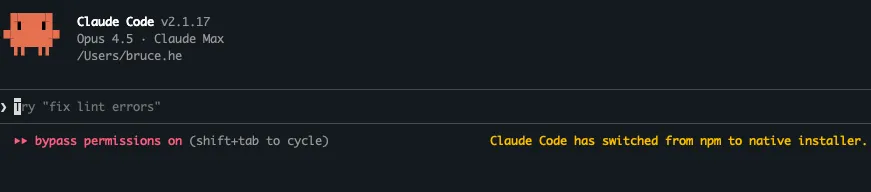
Claude Code is Anthropic’s command-line AI coding assistant. It’s not just a chatbot — it reads your code, writes files, and executes commands directly in your terminal. Here are 24 power tips to help you get the most out of it.
Part 1: Getting Started in 5 Minutes
Installing Claude Code
# One-line install
curl -fsSL https://claude.ai/install.sh | bash
Three Ways to Launch
# Option 1: Start an interactive session
claude

# Option 2: Launch with a prompt
claude "Show me the directory structure of this project"

# Option 3: Non-interactive mode (great for scripts)
claude -p "Generate a .gitignore file"
Once launched, you’ll see an interactive interface where you can type questions directly. Type /help for help or /exit to quit.
Part 2: Core Usage Tips
These are the most frequently used techniques. Master them first.
Tip 1: Be Specific in Your Requests
Vague prompts produce vague results. Give Claude the details it needs.
# ❌ Too vague
> Optimize this function

# ✅ Specific and actionable
> Optimize the parseJSON function in src/utils/parser.js.
> It currently takes 5 seconds to process a 10MB file.
> Target: under 1 second. Consider streaming or chunked parsing.
Key rule: Always specify the file, the problem, and the expected outcome.
Tip 2: Break Complex Tasks Into Steps
Asking Claude to build an entire system at once often leads to missed details or context overflow.
# ❌ All at once (error-prone)
> Build a complete blog system with users, posts, and comments

# ✅ Step by step (controllable and verifiable)
> Step 1: Design the database schema for users, posts, and comments
# Review the design...
> Step 2: Implement user registration and login APIs based on that schema
# Test it...
> Step 3: Implement CRUD endpoints for posts
Key rule: Verify each step before moving to the next.
Tip 3: Let Claude Understand Your Project First
Before asking Claude to write code, let it explore your codebase.
# Get an overview
> Analyze this project's directory structure and tech stack

# Understand a specific module
> Read through src/services/payment and explain the payment flow

# Learn the code style
> Look at the code in src/controllers and summarize the coding conventions
Once Claude understands your project, its output will better match your existing patterns.
Tip 4: Interrupt Immediately When Things Go Wrong
If Claude starts heading in the wrong direction, press Esc to interrupt immediately.
> Refactor the authentication module
# Claude starts executing but touches files it shouldn't...

# Press Esc to interrupt (NOT Ctrl+C — that exits the program)

> Stop. Only refactor files in src/auth. Don't touch src/user.
Key rule: Esc interrupts the task. Ctrl+C exits the program. Catch mistakes early.
Tip 5: Use Screenshots for UI Issues
Got a UI problem? A screenshot is worth a thousand words.
# Mac: Cmd + Ctrl + Shift + 4 to capture to clipboard
# Then press Ctrl+V in Claude Code (not Cmd+V)

> [paste screenshot]
> The login form styling is broken. Inputs should have rounded corners
> and the button color should be #1890ff.
You can also drag and drop image files directly into the terminal window.
Tip 6: Reference Files with @
Use @ to quickly reference files so Claude reads them directly:
# Reference a single file
> Optimize the performance of @src/utils/helper.ts

# Reference multiple files
> Compare @package.json and @package-lock.json for version mismatches

# Reference a directory
> Analyze the component structure in @src/components/
Direct @ references are faster and more precise than having Claude search for files.
Part 3: Productivity Boosters
Master these to dramatically speed up your workflow.
Tip 7: Learn the Essential Shortcuts
Memorize these core shortcuts to keep your hands on the keyboard:
| Action | Shortcut | Notes |
|---|---|---|
| Interrupt task | Esc | Stop current execution |
| Undo operation | Esc + Esc | Roll back code and conversation |
| Newline in input | Option+Enter (Mac) | Enter multi-line content |
| Switch model | Option+P (Mac) | Quick model toggle |
| Paste image | Ctrl+V (Mac) | Send screenshot |
| Background task | Ctrl+B | Send task to background |
See the full shortcut reference in the appendix.
Tip 8: Quick Bash Execution
Prefix commands with ! to execute them directly without Claude’s interpretation:
# Direct execution, bypassing Claude
> ! npm test
> ! git status
> ! docker ps

# Supports Tab auto-completion
> ! npm run b<Tab>  # Auto-completes to npm run build
Great for simple commands where you don’t need Claude’s analysis.
Tip 9: Skip Permission Prompts
Constant permission prompts break your flow. Pre-approve operations you trust:
Option 1: Skip all permissions at startup (use only in trusted environments)
claude --dangerously-skip-permissions
Option 2: Pre-configure allowed commands (recommended)
Edit ~/.claude/settings.json:
{
  "permissions": {
    "allow": [
      "Bash(npm:*)",
      "Bash(git:*)",
      "Bash(docker:*)",
      "Read",
      "Edit"
    ]
  }
}
This allows npm, git, docker commands plus file read/write without confirmation prompts.
Tip 10: Resume Previous Sessions
Pick up where you left off across sessions:
# Continue the most recent conversation
claude -c
# or
claude --continue

# Browse session history
claude -r
# or
claude --resume

# Resume a specific session (supports fuzzy matching)
claude -r "auth refactor"
Name your sessions for easy retrieval:
# Rename the current session
> /rename payment-module-refactor

# Resume it later
$ claude -r "payment"
Tip 11: Background Long-Running Tasks
Send time-consuming tasks to the background and keep working:
# Press Ctrl+B to background the current task
> Refactor the entire services directory
# While executing... press Ctrl+B

# The task continues in the background while you work on other things
> Different question: how do I fix this bug?

# Check background task status
> /tasks
Ideal for large refactors, batch file processing, or any task that takes a while.
Part 4: AI-Powered Terminal
Turn Claude into your intelligent command-line interface.
Tip 12: Natural Language Git Operations
Forget Git command syntax — just describe what you want:
# Check status
> What files did I change today?
> Show me the commits from the last week

# Commit changes
> Commit my changes with message "Fix avatar upload failure"

# Branch operations
> Create a new branch feature/payment from main
> Merge feature/payment into develop

# Rollback
> Undo the last commit but keep the code changes
> Revert config.js to the previous version
Tip 13: Natural Language System Commands
No need to memorize complex command flags:
# Find files
> Find all TypeScript files over 500 lines in src/
> List .vue files modified in the last 24 hours

# Process management
> What's using port 3000?
> Kill all node processes

# Log analysis
> Count HTTP 500 errors in nginx access.log
> Find the 10 most frequent errors in error.log

# Batch operations
> Rename all .jsx files to .tsx in the src directory
> Delete all .DS_Store files in the project
Tip 14: Pipe Data for Analysis
Feed command output directly to Claude for analysis:
# Analyze test results
$ npm test 2>&1 | claude -p "Analyze why these tests are failing"

# Analyze logs
$ tail -100 error.log | claude -p "What do these errors have in common?"

# Analyze Git history
$ git log --oneline -20 | claude -p "Summarize recent development work"

# Analyze dependencies
$ npm outdated | claude -p "Which dependencies should I upgrade first?"
Tip 15: Trigger Deep Thinking
For complex problems, use keywords to activate deeper reasoning:
| Keyword | Depth | Best For | Token Cost |
|---|---|---|---|
think | Basic | Simple questions | Low |
think hard | Medium | Trade-off decisions | Medium |
think harder | Deep | Architecture design | High |
ultrathink | Maximum | Complex system design | Very high |
# Simple problems
> think Why doesn't this regex match?

# Architecture decisions
> think harder Design a push notification system for 1M users,
> considering real-time delivery, reliability, and cost

# Most complex problems (use sparingly — expensive)
> ultrathink Redesign this monolith's microservice decomposition
Tip 16: Plan Mode — Think Before Acting
For complex tasks, have Claude create a plan before making changes:
# Enter plan mode
> /plan

# Or start with plan mode
$ claude --permission-mode plan
In plan mode, Claude will:
- Analyze the requirements
- List implementation steps
- Identify files to modify
- Wait for your approval before executing
# Example: refactoring a complex module
> /plan
> Refactor the order module into separate service, repository, and controller layers

# Claude outputs a detailed plan:
# 1. Create services/order.service.ts
# 2. Create repositories/order.repository.ts
# 3. Modify controllers/order.controller.ts
# 4. Update related test files
# ...

# Approve the plan to start execution
Best for: Refactoring, architecture changes, multi-file modifications.
Tip 17: Multi-Directory Workspaces
Working with a split frontend/backend or microservices? Use /add-dir to give Claude visibility across projects:
# Add related directories
> /add-dir ../backend-api
> /add-dir ../shared-types

# Now Claude can understand cross-project relationships
> The frontend calls /api/users — show me the backend implementation

> Is the UserDTO type in shared-types the same one used by both frontend and backend?
Common scenarios:
# Full-stack project
> /add-dir ../server    # Add backend
> /add-dir ../mobile    # Add mobile app

# Microservices
> /add-dir ../user-service
> /add-dir ../order-service
> /add-dir ../gateway

# Then ask cross-service questions
> How do the user service and order service communicate?
Part 5: Personalization
Customize Claude Code to fit your workflow.
Tip 18: Use the Memory System (CLAUDE.md)
CLAUDE.md is Claude’s memory file for storing project context and your preferences.
File priority (highest to lowest):
./CLAUDE.md              # Project-level, committed to repo, shared with team
./.claude/CLAUDE.md      # Project config
~/.claude/CLAUDE.md      # Global personal preferences
Quick memory entries:
# Use the # prefix to add memories on the fly
> # This project uses pnpm, not npm
> # Commit messages should be in English
> # API responses use { code, data, message } format
Edit the memory file:
> /memory
Example CLAUDE.md:
# Project Standards

## Tech Stack
- Frontend: Vue 3 + TypeScript + Vite
- Backend: Go + Gin + GORM
- Database: PostgreSQL + Redis

## Code Style
- Components use PascalCase, utility functions use camelCase
- Functions should not exceed 50 lines
- Unit tests are required

## Common Commands
- `make dev` — start dev environment
- `make test` — run tests
- `make lint` — lint code
Tip 19: Create Custom Slash Commands
Package common workflows into reusable commands.
Project-level commands (.claude/commands/ directory):
# Create file .claude/commands/review.md
Review the currently staged code:

1. Check for obvious bugs or logic errors
2. Verify compliance with project coding standards
3. Identify security concerns
4. Provide specific improvement suggestions
Usage:
> /project:review
Personal global commands (~/.claude/commands/ directory):
# Create file ~/.claude/commands/standup.md
Prepare my daily standup update:

1. Check git log for yesterday's commits and summarize completed work
2. Check the status of issues assigned to me
3. Identify potential blockers or coordination needs

Output format:
## Yesterday
## Today
## Blockers
Usage:
> /user:standup
Commands with arguments:
# .claude/commands/fix-issue.md
Fix GitHub Issue #$ARGUMENTS

Steps:
1. Run gh issue view $ARGUMENTS to get issue details
2. Analyze the root cause
3. Write the fix
4. Write test cases
5. Run tests to verify
Usage:
> /project:fix-issue 42
Tip 20: Switch Models Strategically
Use different models for different tasks:
| Model | Strengths | Best For |
|---|---|---|
| Opus | Strongest reasoning | Architecture design, complex bugs |
| Sonnet | Balanced (default) | Daily development |
| Haiku | Fastest response | Simple questions, code completion |
# Check current model
> /model

# Switch models
> /model opus     # For complex problems
> /model sonnet   # For everyday tasks
> /model haiku    # For quick tasks

# Keyboard shortcut
# Mac: Option+P
# Win/Linux: Alt+P
Tip 21: Extend Capabilities with MCP Servers
MCP (Model Context Protocol) lets Claude connect to external tools:
# Add GitHub MCP server
$ claude mcp add github -- npx -y @anthropic/github-mcp

# Add database MCP server
$ claude mcp add postgres -- npx -y @anthropic/postgres-mcp

# List installed MCP servers
$ claude mcp list

# Manage MCP in a session
> /mcp
With MCP servers installed, Claude can:
- Manage GitHub PRs and Issues
- Query databases
- Call external APIs
Part 6: Cost and Session Management
Tip 22: Monitor Usage and Compress Context
Check usage:
# Token usage for current session
> /cost

# Context window utilization (visual)
> /context
# Example output: [████████████░░░░░░░░] 58%

# Overall statistics
> /stats

# Subscription quota
> /usage
Compress context:
Long conversations degrade quality and increase costs. Compress regularly:
# Smart compression, preserving key topics
> /compact Keep the database design discussion

# Full reset (when starting a new topic)
> /clear
Guideline: When /context shows over 70%, consider compressing or starting a new session.
Tip 23: Set Budget and Turn Limits
Prevent runaway costs in automated tasks:
# Set maximum spend (USD)
$ claude -p --max-budget-usd 5.00 "Refactor all project tests"

# Limit conversation turns
$ claude -p --max-turns 10 "Fix this bug"

# Combine both
$ claude -p --max-budget-usd 2.00 --max-turns 5 "Optimize performance"
Essential for CI/CD pipelines and scripts to avoid unexpected charges.
Tip 24: Export Conversations
Save important conversations for future reference:
# Export to file
> /export session-2024-01-15.md

# Export to clipboard
> /export

# Exported conversations can be:
# - Saved as documentation
# - Shared with team members
# - Used as context for future sessions
Appendix: Quick Reference
Slash Commands
| Command | Description |
|---|---|
/help | Show help |
/exit | Exit program |
/clear | Clear conversation |
/compact [focus] | Compress conversation history |
/resume [name] | Resume a previous session |
/rename <name> | Rename current session |
/init | Initialize project config |
/memory | Edit memory file |
/model [name] | View/switch model |
/plan | Enter plan mode |
/add-dir <path> | Add working directory |
/cost | View token usage |
/context | View context utilization |
/tasks | View background tasks |
/export [filename] | Export conversation |
/doctor | Check installation status |
/mcp | Manage MCP servers |
CLI Arguments
| Argument | Description |
|---|---|
-c, --continue | Continue last conversation |
-r, --resume [name] | Resume a specific session |
-p, --print | Non-interactive mode |
--model <model> | Specify model |
--permission-mode plan | Start in plan mode |
--max-turns <count> | Limit conversation turns |
--max-budget-usd <amount> | Set maximum spend |
--dangerously-skip-permissions | Skip all permission prompts |
Keyboard Shortcuts
| Shortcut | Action |
|---|---|
Esc | Interrupt current task |
Esc + Esc | Undo operation |
Ctrl+C | Exit program |
Ctrl+L | Clear screen |
Ctrl+B | Background task |
Option+Enter | Newline in input |
Option+P | Switch model |
Ctrl+V | Paste image |
Up/Down | Command history |
Conclusion
This guide covered 24 practical tips for Claude Code:
- Core Usage (1-6): Be specific, break tasks down, explore projects first, interrupt early, use screenshots, reference files with @
- Productivity (7-11): Shortcuts, bash mode, skip permissions, resume sessions, background tasks
- AI Terminal (12-17): Natural language Git, system commands, pipe input, deep thinking, plan mode, multi-directory workspaces
- Personalization (18-21): Memory system, custom commands, model switching, MCP extensions
- Cost Management (22-24): Monitor usage, set budgets, export conversations
Start with the 6 core usage tips and gradually work your way through the rest as you get comfortable.
References
- Claude Code Official Documentation
- Claude Code CLI Reference
- Anthropic Engineering Team Best Practices
Comments
Join the discussion — requires a GitHub account