AWS CLI Complete Guide: Installation, Configuration, S3/EC2 Commands & Troubleshooting
Master AWS CLI from scratch: install v2, configure profiles, manage S3 buckets and EC2 instances, and troubleshoot common permission errors.
AWSAWS CLIS3EC2Cloud ComputingDevOpsCLI
1393 Words
2020-07-03

The AWS CLI (Amazon Web Services Command Line Interface) is Amazon’s official unified tool for managing all AWS services from the terminal. Whether you are spinning up EC2 instances, syncing files to S3, or automating deployments, the CLI is often the fastest path. This guide walks through installation, configuration, everyday commands for the most popular services, and solutions to the errors you will inevitably hit.
Installing AWS CLI
AWS now recommends v2 for all new installations. It ships with a built-in installer, runs faster than v1, and supports every current service API.
macOS
Option 1 – Homebrew (recommended)
brew install awscli
Option 2 – Official installer
# Download the package
curl "https://awscli.amazonaws.com/AWSCLIV2.pkg" -o "AWSCLIV2.pkg"

# Install
sudo installer -pkg AWSCLIV2.pkg -target /
Linux
# x86_64
curl "https://awscli.amazonaws.com/awscli-exe-linux-x86_64.zip" -o "awscliv2.zip"
unzip awscliv2.zip
sudo ./aws/install

# ARM64
curl "https://awscli.amazonaws.com/awscli-exe-linux-aarch64.zip" -o "awscliv2.zip"
unzip awscliv2.zip
sudo ./aws/install
Windows
Download and run the MSI installer:
https://awscli.amazonaws.com/AWSCLIV2.msi
Verify the installation
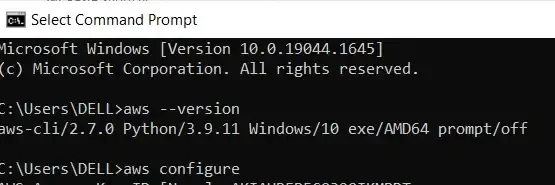
aws --version
# Example output: aws-cli/2.27.41 Python/3.11.6 Darwin/24.0.0
Configuring AWS CLI
Quick setup
Run aws configure for an interactive walkthrough:
$ aws configure
AWS Access Key ID [None]: AKIAIOSFODNN7EXAMPLE
AWS Secret Access Key [None]: wJalrXUtnFEMI/K7MDENG/bPxRfiCYEXAMPLEKEY
Default region name [None]: us-west-2
Default output format [None]: json
This creates two files under ~/.aws/:
| File | Purpose |
|---|---|
~/.aws/credentials | Stores access keys |
~/.aws/config | Stores region and output format |
Named profiles for multiple environments
Create a separate profile for each AWS account or environment:
# Production account
aws configure --profile prod

# Development account
aws configure --profile dev
Switch between profiles:
# Per-command flag
aws s3 ls --profile prod

# Or export once per session
export AWS_PROFILE=prod
aws s3 ls
Environment variables
Environment variables override the config file, which is handy for CI/CD pipelines and containers:
# Linux / macOS
export AWS_ACCESS_KEY_ID=AKIAIOSFODNN7EXAMPLE
export AWS_SECRET_ACCESS_KEY=wJalrXUtnFEMI/K7MDENG/bPxRfiCYEXAMPLEKEY
export AWS_DEFAULT_REGION=us-west-2

# Windows PowerShell
$Env:AWS_ACCESS_KEY_ID="AKIAIOSFODNN7EXAMPLE"
$Env:AWS_SECRET_ACCESS_KEY="wJalrXUtnFEMI/K7MDENG/bPxRfiCYEXAMPLEKEY"
$Env:AWS_DEFAULT_REGION="us-west-2"
Verify your identity
aws sts get-caller-identity

# Example output
{
    "UserId": "AIDAEXAMPLEUSERID",
    "Account": "123456789012",
    "Arn": "arn:aws:iam::123456789012:user/username"
}
S3 Storage Operations
S3 is the backbone of AWS storage. The CLI covers every operation you need for day-to-day object management.
Bucket management
# List all buckets
aws s3 ls

# Create a bucket
aws s3 mb s3://my-bucket-name

# Create a bucket in a specific region
aws s3 mb s3://my-bucket-name --region ap-northeast-1

# Remove an empty bucket
aws s3 rb s3://my-bucket-name

# Force-remove a non-empty bucket (deletes all objects)
aws s3 rb s3://my-bucket-name --force
Listing objects
# List bucket contents
aws s3 ls s3://my-bucket

# List objects under a prefix
aws s3 ls s3://my-bucket/folder/

# Summarize total size (recursive)
aws s3 ls --summarize --human-readable --recursive s3://my-bucket
Uploading and downloading
# Upload a single file
aws s3 cp local-file.txt s3://my-bucket/

# Download a single file
aws s3 cp s3://my-bucket/remote-file.txt ./

# Upload a directory recursively
aws s3 cp ./local-folder s3://my-bucket/folder/ --recursive

# Download a directory recursively
aws s3 cp s3://my-bucket/folder/ ./local-folder --recursive

# Exclude certain files
aws s3 cp ./local-folder s3://my-bucket/ --recursive --exclude "*.log"

# Include only certain files
aws s3 cp ./local-folder s3://my-bucket/ --recursive --include "*.jpg" --exclude "*"
Syncing directories
sync only transfers changed files, making it ideal for incremental backups:
# Local to S3
aws s3 sync ./local-folder s3://my-bucket/folder/

# S3 to local
aws s3 sync s3://my-bucket/folder/ ./local-folder

# Delete files in the destination that don't exist in the source
aws s3 sync ./local-folder s3://my-bucket/folder/ --delete

# Use a cheaper storage class
aws s3 sync ./local-folder s3://my-bucket/ --storage-class STANDARD_IA
Moving and deleting
# Move / rename an object
aws s3 mv s3://my-bucket/old-name.txt s3://my-bucket/new-name.txt

# Move an entire directory
aws s3 mv s3://source-bucket/ s3://dest-bucket/ --recursive

# Delete a single object
aws s3 rm s3://my-bucket/file.txt

# Delete a directory recursively
aws s3 rm s3://my-bucket/folder/ --recursive
Access control
# Upload with public-read ACL
aws s3 cp file.txt s3://my-bucket/ --acl public-read

# Grant read access to all users
aws s3 cp file.txt s3://my-bucket/ --grants read=uri=http://acs.amazonaws.com/groups/global/AllUsers
Streaming
# Pipe from stdin
echo "Hello World" | aws s3 cp - s3://my-bucket/hello.txt

# Pipe to stdout
aws s3 cp s3://my-bucket/hello.txt -

# Compress on the fly
aws s3 cp s3://my-bucket/large-file - | gzip | aws s3 cp - s3://my-bucket/large-file.gz
EC2 Instance Management
Querying instances
# List all instances
aws ec2 describe-instances

# Describe a specific instance
aws ec2 describe-instances --instance-ids i-1234567890abcdef0

# Filter by state (running only)
aws ec2 describe-instances --filters "Name=instance-state-name,Values=running"

# Filter by tag
aws ec2 describe-instances --filters "Name=tag:Name,Values=my-server"

# Filter by instance type
aws ec2 describe-instances --filters "Name=instance-type,Values=t2.micro"

# Extract specific fields with JMESPath
aws ec2 describe-instances --query "Reservations[].Instances[].InstanceId"
Starting, stopping, and terminating
# Start
aws ec2 start-instances --instance-ids i-1234567890abcdef0

# Stop
aws ec2 stop-instances --instance-ids i-1234567890abcdef0

# Reboot
aws ec2 reboot-instances --instance-ids i-1234567890abcdef0

# Terminate (permanent)
aws ec2 terminate-instances --instance-ids i-1234567890abcdef0
Launching a new instance
aws ec2 run-instances \
    --image-id ami-0abcdef1234567890 \
    --count 1 \
    --instance-type t2.micro \
    --key-name MyKeyPair \
    --security-group-ids sg-903004f8 \
    --subnet-id subnet-6e7f829e
Tagging resources
# Add a single tag
aws ec2 create-tags --resources i-1234567890abcdef0 --tags Key=Name,Value=MyInstance

# Add multiple tags at once
aws ec2 create-tags --resources i-1234567890abcdef0 \
    --tags Key=Name,Value=MyInstance Key=Environment,Value=Production
Security groups
# List security groups
aws ec2 describe-security-groups

# Create a security group
aws ec2 create-security-group \
    --group-name my-sg \
    --description "My security group" \
    --vpc-id vpc-1234567890abcdef0

# Allow inbound SSH
aws ec2 authorize-security-group-ingress \
    --group-id sg-903004f8 \
    --protocol tcp \
    --port 22 \
    --cidr 0.0.0.0/0
Kinesis Data Streams
# List all streams
aws kinesis list-streams

# Put a record
aws kinesis put-record \
    --stream-name my-stream \
    --partition-key 123 \
    --data "Hello Kinesis"

# Get a shard iterator
aws kinesis get-shard-iterator \
    --stream-name my-stream \
    --shard-id shardId-000000000000 \
    --shard-iterator-type TRIM_HORIZON

# Read records
aws kinesis get-records --shard-iterator <iterator>
SQS Message Queues
# List queues
aws sqs list-queues

# Send a message
aws sqs send-message \
    --queue-url https://sqs.us-east-1.amazonaws.com/123456789012/my-queue \
    --message-body "Hello SQS"

# Receive messages
aws sqs receive-message \
    --queue-url https://sqs.us-east-1.amazonaws.com/123456789012/my-queue \
    --attribute-names All \
    --max-number-of-messages 10

# Delete a message
aws sqs delete-message \
    --queue-url https://sqs.us-east-1.amazonaws.com/123456789012/my-queue \
    --receipt-handle <handle>
SNS Notifications
# List topics
aws sns list-topics

# List platform applications
aws sns list-platform-applications

# Publish a message
aws sns publish \
    --topic-arn arn:aws:sns:us-east-1:123456789012:my-topic \
    --message "Hello SNS"

# Subscribe to a topic
aws sns subscribe \
    --topic-arn arn:aws:sns:us-east-1:123456789012:my-topic \
    --protocol email \
    --notification-endpoint [email protected]
Tips and Tricks
Output formats
# JSON (default)
aws s3 ls --output json

# Table (human-readable)
aws ec2 describe-instances --output table

# Plain text (easy to parse in scripts)
aws ec2 describe-instances --output text

# YAML
aws ec2 describe-instances --output yaml
Filtering with JMESPath
JMESPath lets you extract exactly the data you need without piping through jq:
# Get all instance IDs
aws ec2 describe-instances --query "Reservations[].Instances[].InstanceId"

# Build a custom table
aws ec2 describe-instances \
    --query "Reservations[].Instances[].[InstanceId,InstanceType,State.Name]" \
    --output table

# Filter within the query
aws ec2 describe-instances \
    --query "Reservations[].Instances[?State.Name=='running'].InstanceId"
Pagination
# Limit the number of items returned
aws s3api list-objects-v2 --bucket my-bucket --max-items 100

# Continue from a pagination token
aws s3api list-objects-v2 --bucket my-bucket --starting-token <token>
Built-in help
# List all services
aws help

# Help for a specific service
aws s3 help

# Help for a subcommand
aws s3 cp help
Dry-run mode
Test whether you have the right permissions before actually making changes:
aws ec2 run-instances --dry-run --image-id ami-123456
Troubleshooting Common Errors
Invalid credentials
An error occurred (InvalidAccessKeyId): The AWS Access Key Id you provided does not exist
Fix: Double-check the Access Key ID. Make sure the IAM user is active and the key has not been rotated or deleted.
Access denied
An error occurred (AccessDenied): Access Denied
Fix: Verify that the IAM user or role has the required policy attached. Use aws sts get-caller-identity to confirm which identity the CLI is using.
Cannot connect to endpoint
Could not connect to the endpoint URL
Fix: Check your region setting. Some services are not available in every region, and a wrong region will produce this error.
Wrapping Up
The AWS CLI turns cloud management into a scriptable, repeatable workflow. Here are the key takeaways:
- Install v2 for the latest features and performance improvements.
- Use named profiles to safely manage credentials for multiple accounts.
- S3 essentials:
cp,sync,mv, andrmcover almost every file operation. - EC2 essentials: combine
--queryand--filtersto pinpoint exactly the resources you need. - When in doubt:
aws <service> helpis always one command away.
Comments
Join the discussion — requires a GitHub account