Traceroute Command Explained: Network Path Tracing and Troubleshooting Guide
Complete traceroute/tracert tutorial covering TTL mechanics, command options, output interpretation, and real-world troubleshooting on Linux, macOS, and Windows.
tracerouteLinuxNetworkingTTLICMPDevOpsCLI
1993 Words
2020-06-28
Slow websites, laggy video calls, SSH connections that hang forever – these problems often hide somewhere along the network path between you and a remote server. The traceroute command (tracert on Windows) is the tool that answers “where exactly is the bottleneck?” It maps every router between your machine and the destination, measuring the round-trip delay at each hop so you can see precisely where things go wrong.
This guide covers everything you need to know about traceroute: how TTL-based probing works under the hood, command usage across Linux, macOS, and Windows, how to read the output like a pro, and real-world troubleshooting scenarios. If you also need to debug HTTP-level issues, pair this with the curl command guide.
What Is Traceroute?
Traceroute (called tracert on Windows) is a command-line network diagnostic tool that reveals the path packets take through an IP network from source to destination.
Core Capabilities
| Capability | What It Does |
|---|---|
| Path discovery | Shows every router the packet passes through |
| Latency measurement | Measures round-trip time (RTT) to each hop |
| Fault isolation | Pinpoints the node where a failure or slowdown occurs |
| Topology mapping | Reveals the routing structure of a network |
Platform Differences at a Glance
| Platform | Command | Default Protocol |
|---|---|---|
| Linux / macOS | traceroute | UDP |
| Windows | tracert | ICMP |
| Cisco IOS | traceroute | UDP |
How It Works: The TTL Trick
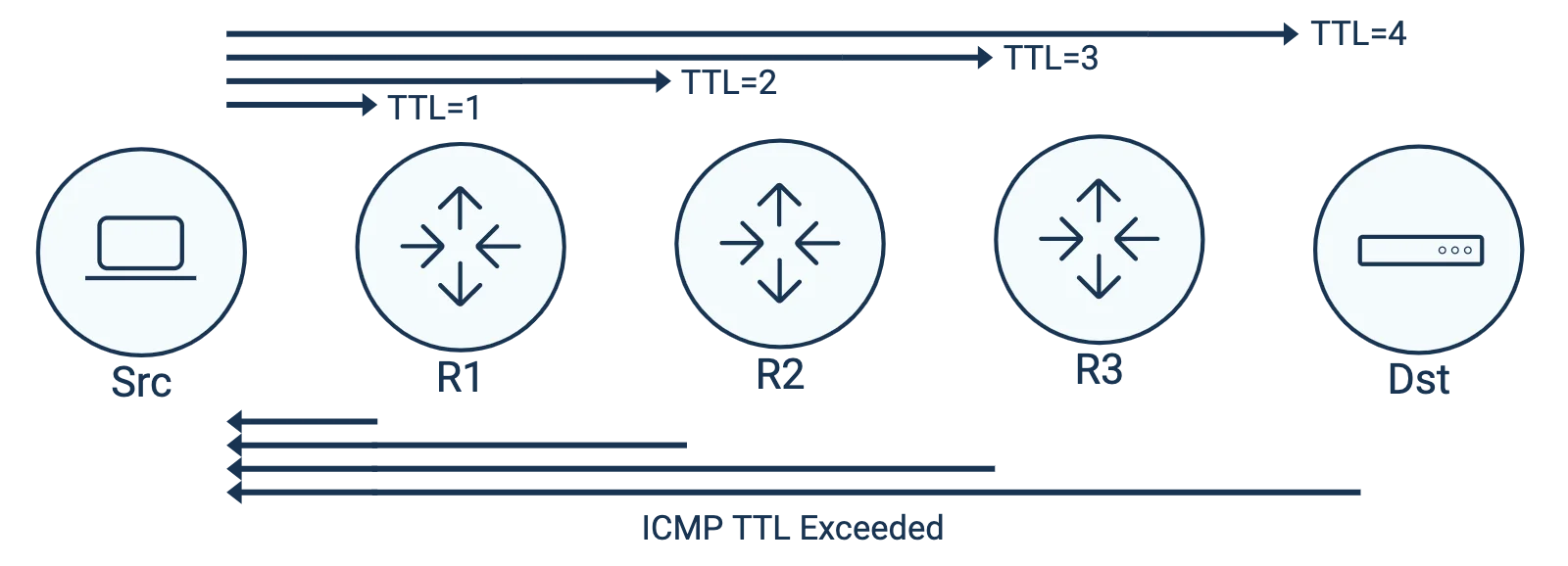
Traceroute exploits the TTL (Time To Live) field in the IP header.
The TTL Mechanism
Every IP packet carries a TTL value that limits how many routers it can traverse:
- Each router decrements the TTL by 1
- When the TTL hits 0, the router drops the packet
- The router sends an ICMP Time Exceeded message back to the sender
The Probing Process
Traceroute sends packets with progressively increasing TTL values to discover each router along the path:
Probe 1 (TTL=1):
Source ──[TTL=1]──> Router1 ──X (TTL=0, dropped)
Router1 ──[ICMP Time Exceeded]──> Source
✓ Hop 1 discovered: Router1

Probe 2 (TTL=2):
Source ──[TTL=2]──> Router1 ──[TTL=1]──> Router2 ──X (TTL=0)
Router2 ──[ICMP Time Exceeded]──> Source
✓ Hop 2 discovered: Router2

Probe N (TTL=N):
Packet finally reaches the destination
Destination ──[ICMP Port Unreachable]──> Source
✓ Trace complete
Why Three Times per Hop?
By default, traceroute sends 3 probe packets per hop. This serves three purposes:
- Produces more reliable latency measurements
- Reveals network jitter
- Exposes load-balanced multi-path routing
Linux Traceroute: Full Command Reference
Basic Syntax
traceroute [options] destination [packet_size]
Common Options
| Option | Purpose | Example |
|---|---|---|
-n | Skip DNS lookups, show raw IPs | traceroute -n example.com |
-m <hops> | Set max hop count (default: 30) | traceroute -m 15 example.com |
-q <count> | Probes per hop (default: 3) | traceroute -q 1 example.com |
-w <secs> | Timeout per probe | traceroute -w 5 example.com |
-I | Use ICMP ECHO instead of UDP | traceroute -I example.com |
-T | Use TCP SYN probes | traceroute -T -p 80 example.com |
-p <port> | Set destination port | traceroute -p 443 example.com |
-i <iface> | Bind to a network interface | traceroute -i eth0 example.com |
-s <IP> | Set source IP address | traceroute -s 192.168.1.100 example.com |
Practical Examples
Example 1: Basic trace
$ traceroute www.example.com
traceroute to www.example.com (93.184.216.34), 30 hops max, 60 byte packets
 1  192.168.1.1 (192.168.1.1)  1.234 ms  1.123 ms  1.089 ms
 2  10.0.0.1 (10.0.0.1)  5.678 ms  5.432 ms  5.321 ms
 3  72.14.215.85 (72.14.215.85)  8.440 ms  7.046 ms  5.386 ms
 4  * * *
 5  209.85.251.9 (209.85.251.9)  9.818 ms  9.091 ms  7.037 ms
 6  93.184.216.34 (93.184.216.34)  10.234 ms  9.876 ms  9.654 ms
Example 2: Fast mode (no DNS, one probe per hop)
$ traceroute -n -q 1 www.example.com
Much faster – ideal for quick diagnostics when you just need the big picture.
Example 3: ICMP mode (behaves like Windows tracert)
$ sudo traceroute -I www.example.com
Some firewalls block UDP but allow ICMP. Switching to -I can fill in hops that otherwise show * * *.
Example 4: TCP probes (punching through firewalls)
$ sudo traceroute -T -p 443 www.example.com
When both UDP and ICMP are blocked, TCP SYN probes aimed at a commonly allowed port (80 or 443) often get through.
Windows tracert: Full Command Reference
Windows ships with tracert, which uses ICMP by default.
Basic Syntax
tracert [-d] [-h maximum_hops] [-j host-list] [-w timeout] target_name
Common Options
| Option | Purpose |
|---|---|
-d | Skip DNS lookups |
-h <hops> | Maximum hop count |
-w <ms> | Timeout in milliseconds |
-j <host-list> | Loose source routing |
Example Output
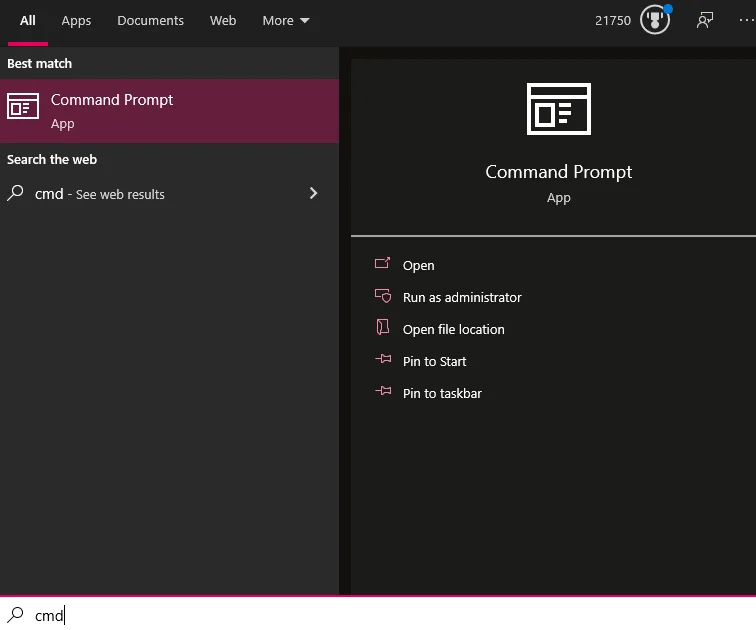
C:\> tracert www.example.com

Tracing route to www.example.com [93.184.216.34]
over a maximum of 30 hops:

  1     1 ms     1 ms     1 ms  192.168.1.1
  2     5 ms     4 ms     5 ms  10.0.0.1
  3     8 ms     7 ms     8 ms  72.14.215.85
  4     *        *        *     Request timed out.
  5    10 ms     9 ms    10 ms  209.85.251.9
  6    11 ms    10 ms    11 ms  93.184.216.34

Trace complete.
Reading the Output Like a Pro
Understanding traceroute output is the key to effective network troubleshooting.
Output Structure
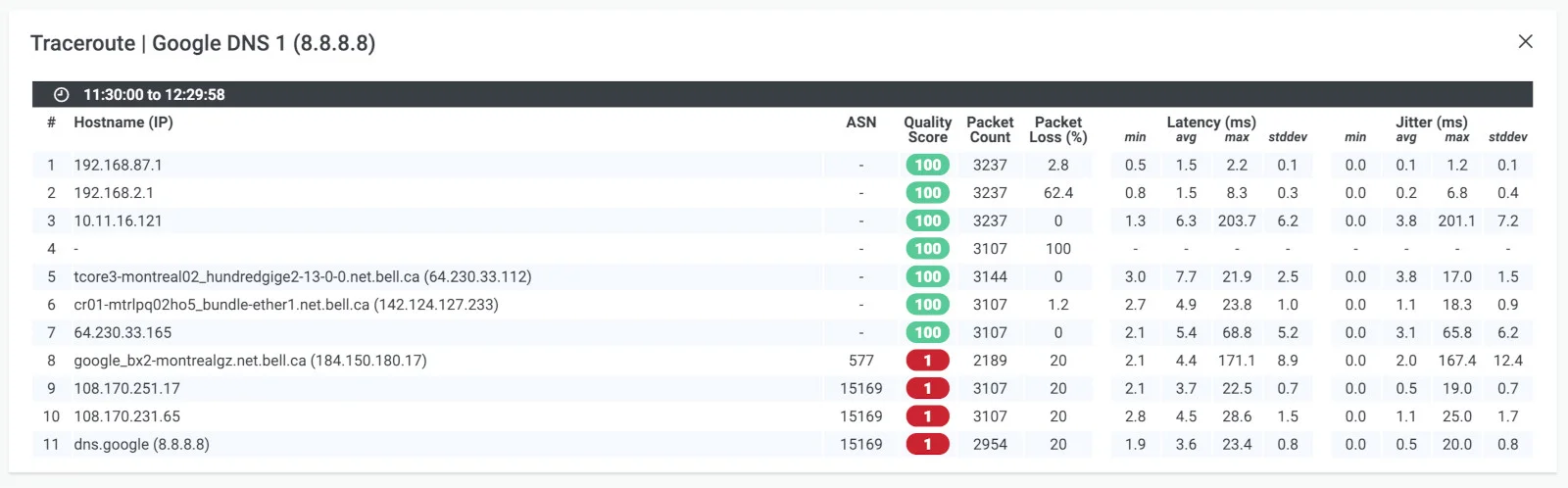
Each line contains:
Hop#  RTT1       RTT2       RTT3       Hostname / IP
 1    1.234 ms   1.123 ms   1.089 ms   192.168.1.1
Common Patterns and What They Mean
1. Normal response
3 72.14.215.85 (72.14.215.85) 8.440 ms 7.046 ms 5.386 ms
All three RTT values are close together – this hop is healthy.
2. Asterisks (*) – timeout
4 * * *
No response from this hop. Possible causes:
- The router is configured to ignore traceroute probes
- A firewall is filtering the packets
- Congestion-induced packet loss
- An actual outage at this point
3. Partial timeout
5 209.85.251.9 (209.85.251.9) 9.818 ms * 7.037 ms
One of the three probes timed out – usually minor packet loss or a load balancer rotating responses.
4. Latency spike
3  10.0.0.1 (10.0.0.1)          5 ms    5 ms    5 ms
4  202.97.80.1 (202.97.80.1)  150 ms  148 ms  152 ms  ← spike
A jump from 5 ms to 150 ms between hops 3 and 4 signals a bottleneck. Common causes:
- Cross-ISP or international link
- Link congestion
- Long physical distance (e.g., undersea cable)
5. Multiple IPs at the same hop
5  209.85.251.9 (209.85.251.9)    9 ms
   209.85.251.5 (209.85.251.5)    8 ms
   72.14.233.113 (72.14.233.113)  7 ms
Different probes hit different routers at this hop, indicating load balancing or ECMP (Equal-Cost Multi-Path) routing.
Visualizing the Path
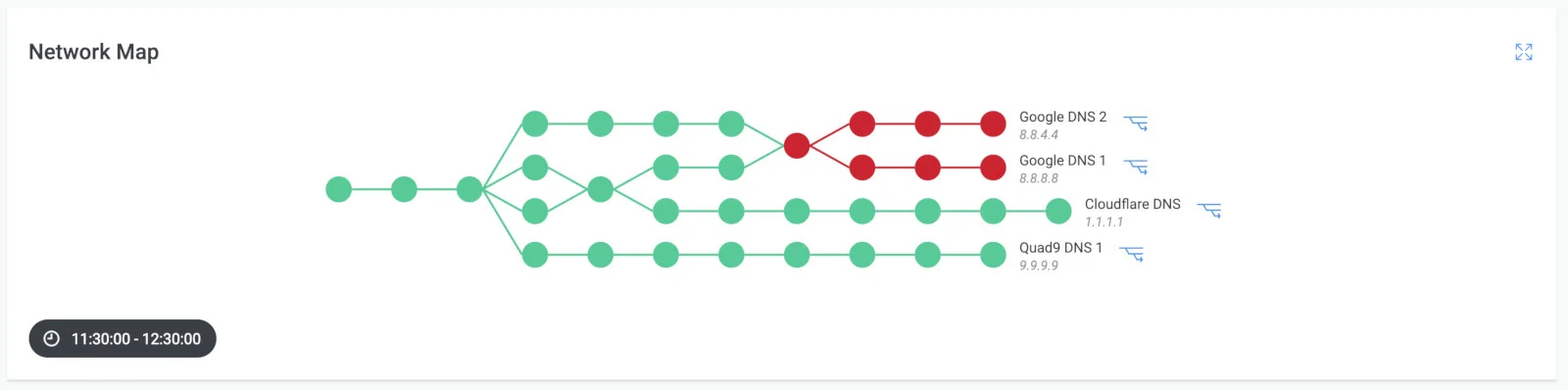
Modern monitoring tools can plot traceroute results on a map, making it easy to see where packets travel geographically.
Real-World Troubleshooting Scenarios
Scenario 1: Pinpointing where the latency lives
$ traceroute -n www.example.com
 1  192.168.1.1      1 ms   1 ms   1 ms     ← Local router, fine
 2  10.0.0.1         5 ms   5 ms   5 ms     ← ISP gateway, fine
 3  202.97.80.1     15 ms  14 ms  15 ms     ← Backbone entry
 4  202.97.80.113  180 ms 175 ms 182 ms     ← Huge spike! Problem here
 5  219.148.18.117 185 ms 183 ms 186 ms
 6  * * *
Diagnosis: Latency balloons from 15 ms to 180 ms between hops 3 and 4. This link is the bottleneck – contact your ISP with this evidence.
Scenario 2: Is the problem on my end?
$ traceroute -n www.example.com
 1  * * *                                   ← Local router not responding
 2  * * *
 3  * * *
Diagnosis: No response from the very first hop. Likely causes:
- Local router malfunction
- Misconfigured network settings
- Local firewall blocking traceroute
Scenario 3: Firewalls causing false alarms
$ traceroute www.example.com
 1  192.168.1.1      1 ms   1 ms   1 ms
 2  10.0.0.1         5 ms   5 ms   5 ms
 3  * * *
 4  * * *
 5  * * *
 6  203.0.113.1     20 ms  19 ms  20 ms     ← Destination reached
Diagnosis: The intermediate * * * hops look alarming, but the packet reaches the destination with healthy latency. The middle routers are simply configured to suppress ICMP responses – this is normal security practice, not a network problem.
Advanced Techniques
1. MTR: A More Powerful Alternative
MTR (My Traceroute) combines traceroute with continuous ping monitoring:
$ mtr www.example.com
It refreshes in real time and shows packet loss rates and average latency statistics per hop – far more useful than a single snapshot.
2. TCP Probes to Bypass Firewalls
When UDP and ICMP are both blocked:
$ sudo traceroute -T -p 80 www.example.com   # HTTP port
$ sudo traceroute -T -p 443 www.example.com  # HTTPS port
3. Specifying the Source IP (Multi-NIC Hosts)
$ traceroute -s 192.168.1.100 -i eth0 www.example.com
4. Larger Probe Packets (Detecting MTU Issues)
Some problems only surface with larger packets:
$ traceroute www.example.com 1400 # 1400-byte packets
This helps diagnose Path MTU Discovery (PMTUD) failures – a common cause of “works for small requests but hangs on large transfers.”
Frequently Asked Questions
Q1: Why do some hops show * * *?
Possible causes:
- The router is configured not to send ICMP Time Exceeded replies
- A firewall is filtering the responses
- Congestion caused all three probes to be dropped
- The node is genuinely unreachable
Rule of thumb: If the final destination responds normally, you can safely ignore * * * at intermediate hops.
Q2: What is the difference between traceroute and ping?
| Tool | What It Does | Best For |
|---|---|---|
| ping | Tests reachability and measures RTT to a single target | Quick connectivity checks |
| traceroute | Shows the full path and latency at every hop | Isolating which hop causes delay or failure |
Q3: Why do Linux and Windows produce different results?
Linux defaults to UDP probes while Windows defaults to ICMP. Firewalls often treat these protocols differently, leading to different hops responding (or not). Use traceroute -I on Linux to match the Windows behavior.
Q4: What is the difference between traceroute and tracert?
| Aspect | traceroute (Linux/macOS) | tracert (Windows) |
|---|---|---|
| Default protocol | UDP | ICMP |
| Option style | Unix (-n, -m) | Windows (-d, -h) |
| Root required? | Only for ICMP/TCP modes (sudo) | No |
| Protocol flexibility | UDP, ICMP, and TCP | ICMP only |
Q5: How do I use traceroute on macOS?
macOS includes traceroute out of the box, with the same syntax as Linux:
# Basic trace
traceroute www.example.com

# ICMP mode (requires sudo)
sudo traceroute -I www.example.com

# Fast mode
traceroute -n -q 1 www.example.com
Q6: The latency numbers seem unreliable. What should I do?
A single traceroute captures a moment in time and can be skewed by transient spikes. Use MTR for continuous monitoring – it aggregates data over many probes to give you reliable averages and loss percentages. Running traceroute multiple times and comparing results also helps.
Q7: Does traceroute require root privileges?
With the default UDP protocol, no. However, ICMP mode (-I) and TCP mode (-T) create raw sockets, which require sudo on Linux and macOS.
Q8: What is the maximum number of hops traceroute can reach?
The default limit is 30 hops, adjustable with -m. In practice, most internet paths are 15-20 hops. If a trace exceeds 30 hops without reaching the destination, the route is likely abnormal or the target is unreachable.
Quick Reference: Traceroute Options Cheat Sheet
| Option | Purpose | Example |
|---|---|---|
-n | No DNS lookups, show IPs | traceroute -n example.com |
-m | Max hop count | traceroute -m 20 example.com |
-q | Probes per hop | traceroute -q 1 example.com |
-w | Timeout (seconds) | traceroute -w 3 example.com |
-I | Use ICMP protocol | sudo traceroute -I example.com |
-T | Use TCP protocol | sudo traceroute -T example.com |
-p | Set destination port | traceroute -p 443 example.com |
-i | Bind to interface | traceroute -i eth0 example.com |
-s | Set source IP | traceroute -s 10.0.0.1 example.com |
-4 | Force IPv4 | traceroute -4 example.com |
-6 | Force IPv6 | traceroute -6 example.com |
Summary
Traceroute is a fundamental network diagnostic tool. Mastering it enables you to:
- Map network topology – see the actual path your packets travel
- Isolate latency – identify the exact hop where delays occur
- Troubleshoot connectivity – determine which segment of the network is broken
- Communicate with your ISP – provide concrete evidence when reporting issues
Key takeaways:
* * *does not always mean trouble – check whether the destination is ultimately reached- Focus on latency spikes between consecutive hops, not absolute values at a single hop
- Combine traceroute with ping and MTR for a complete picture
Further Reading
- Curl Command Guide: GET/POST, File Transfers, and Debugging - Debug HTTP requests alongside traceroute for end-to-end network troubleshooting
- Linux/macOS Command Cheat Sheet - Quick reference for essential commands including ping, netstat, and other network tools
Comments
Join the discussion — requires a GitHub account