Oh My Zsh Setup Guide: Build a Productive Terminal Environment
Complete Oh My Zsh installation and configuration guide covering Zsh setup, Powerlevel10k theme, zsh-autosuggestions, zsh-syntax-highlighting plugins, custom aliases, and performance tuning for macOS and Linux.
zshoh-my-zshshelllinuxmacospowerlevel10k
1092 Words
2015-06-17
If you spend any time in a terminal on Linux or macOS, you owe it to yourself to move beyond the default Bash experience. Zsh paired with Oh My Zsh transforms your shell into something far more capable and enjoyable to use. This guide walks you through the entire setup — from installing Zsh to fine-tuning performance — so you can get more done on the command line with less effort.
Why Zsh + Oh My Zsh?
Here is how Zsh with Oh My Zsh stacks up against a stock Bash setup:
| Feature | Bash | Zsh + Oh My Zsh |
|---|---|---|
| Tab completion | Basic | Context-aware, completes flags and arguments |
| Themes | None | 150+ built-in themes |
| Plugins | Manual setup | 300+ ready to use |
| Syntax highlighting | None | Real-time highlighting with error feedback |
| History search | Basic | Fuzzy search across sessions |
Oh My Zsh is an open-source, community-driven framework for managing your Zsh configuration. As the project puts it: “It won’t make you a 10x developer… but you might feel like one.”
Step 1: Install Zsh
macOS
macOS Catalina and later ship with Zsh as the default shell. Verify with:
echo $SHELL
# Should output /bin/zsh
If you are still on Bash, install Zsh via Homebrew:
brew install zsh
chsh -s $(which zsh)
Ubuntu / Debian
sudo apt update
sudo apt install zsh -y

# Set Zsh as default shell
chsh -s $(which zsh)
CentOS / RHEL
sudo yum install zsh -y
# Or with dnf
sudo dnf install zsh -y

chsh -s $(which zsh)
Log out and back in for the shell change to take effect.
Step 2: Install Oh My Zsh
Oh My Zsh provides a one-liner installer:
# Using curl (recommended)
sh -c "$(curl -fsSL https://raw.githubusercontent.com/ohmyzsh/ohmyzsh/master/tools/install.sh)"

# Or using wget
sh -c "$(wget -O- https://raw.githubusercontent.com/ohmyzsh/ohmyzsh/master/tools/install.sh)"
If you have trouble reaching GitHub, try the mirror:
sh -c "$(curl -fsSL https://install.ohmyz.sh/)"
After installation you will see the Oh My Zsh welcome screen. Your existing .zshrc is automatically backed up as .zshrc.pre-oh-my-zsh.
Step 3: Pick a Theme
Oh My Zsh ships with over 150 themes. The default is robbyrussell. To switch, edit your config:
vi ~/.zshrc
Find the ZSH_THEME line and change it:
ZSH_THEME="agnoster" # Classic theme, requires a Powerline font
Recommended: Powerlevel10k
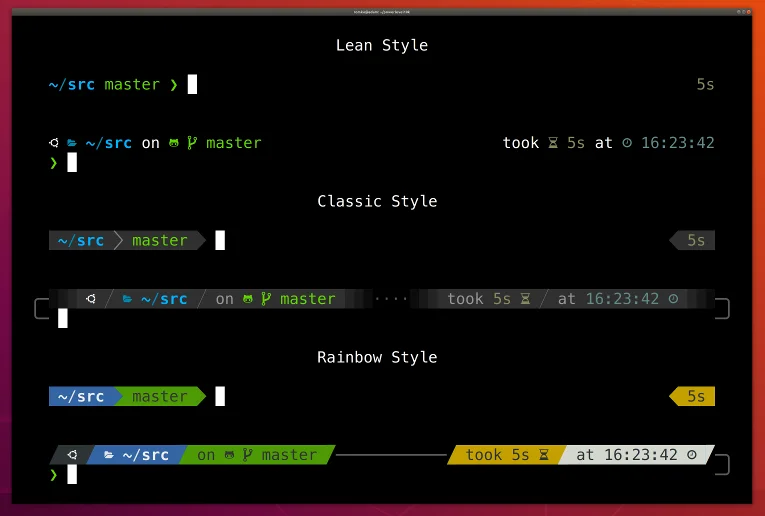
Powerlevel10k is the most popular Zsh theme today, known for instant rendering and deep customization.
Install Powerlevel10k
git clone --depth=1 https://github.com/romkatv/powerlevel10k.git \
  ${ZSH_CUSTOM:-$HOME/.oh-my-zsh/custom}/themes/powerlevel10k
Update ~/.zshrc:
ZSH_THEME="powerlevel10k/powerlevel10k"
Reload your config:
source ~/.zshrc
The first time you load it, a configuration wizard will launch automatically. Follow the prompts to choose your preferred prompt style:

To re-run the wizard later:
p10k configure
Powerlevel10k Style Preview

Install the Recommended Font
Powerlevel10k needs a Nerd Font to render icons correctly. MesloLGS NF is the recommended choice:
- macOS:
brew tap homebrew/cask-fonts && brew install font-meslo-lg-nerd-font - Manual download: MesloLGS NF font
After installing the font, set your terminal emulator to use MesloLGS NF.
Step 4: Install Essential Plugins
The plugin ecosystem is where Oh My Zsh really shines. Here are the must-haves:
1. zsh-autosuggestions
Suggests commands as you type based on your history. Press → to accept a suggestion.
git clone https://github.com/zsh-users/zsh-autosuggestions \
  ${ZSH_CUSTOM:-~/.oh-my-zsh/custom}/plugins/zsh-autosuggestions
2. zsh-syntax-highlighting
Highlights valid commands in green and invalid ones in red as you type — catching mistakes before you hit Enter.
git clone https://github.com/zsh-users/zsh-syntax-highlighting \
  ${ZSH_CUSTOM:-~/.oh-my-zsh/custom}/plugins/zsh-syntax-highlighting
3. Enable the Plugins
Edit ~/.zshrc and update the plugins array:
plugins=(
  git                      # Git aliases and completions
  zsh-autosuggestions      # History-based suggestions
  zsh-syntax-highlighting  # Real-time syntax highlighting
  z                        # Frecency-based directory jumping
  extract                  # Universal archive extraction
  sudo                     # Press ESC twice to prepend sudo
)
Apply the changes:
source ~/.zshrc
More Built-in Plugins Worth Enabling
| Plugin | What It Does |
|---|---|
git | Git aliases like gst for git status |
z | Jump to frequently used directories, e.g. z project |
extract | Extract tar, zip, rar, 7z, and more with one command |
sudo | Double-tap ESC to add sudo to the current command |
docker | Docker command completions |
kubectl | Kubernetes command completions |
macos | macOS utilities like ofd to open Finder |
Step 5: Set Up Custom Aliases
Shell aliases save keystrokes on commands you run dozens of times a day. Create a separate file to keep things organized:
vi ~/.zshrc.local
Add your aliases:
# Git shortcuts
alias gs='git status'
alias ga='git add'
alias gc='git commit -m'
alias gp='git push'
alias gl='git pull'
alias gd='git diff'
alias gco='git checkout'
alias gb='git branch'

# Directory navigation
alias ..='cd ..'
alias ...='cd ../..'
alias ll='ls -alh'
alias la='ls -A'

# Quick directories
alias proj='cd ~/Projects'
alias desk='cd ~/Desktop'

# System
alias cls='clear'
alias h='history'
alias grep='grep --color=auto'

# Network
alias myip='curl -s ifconfig.me'
alias ports='netstat -tulanp'
Then source it from ~/.zshrc by adding this line at the end:
# Load local overrides
[[ -f ~/.zshrc.local ]] && source ~/.zshrc.local
Apply everything:
source ~/.zshrc
Step 6: Optimize Startup Performance
If your terminal feels sluggish on launch, try these fixes:
1. Trim Your Plugin List
Every plugin adds to startup time. Only enable what you actually use.
2. Enable Powerlevel10k Instant Prompt
Add this at the very top of ~/.zshrc, before anything else:
# Enable Powerlevel10k instant prompt
if [[ -r "${XDG_CACHE_HOME:-$HOME/.cache}/p10k-instant-prompt-${(%):-%n}.zsh" ]]; then
  source "${XDG_CACHE_HOME:-$HOME/.cache}/p10k-instant-prompt-${(%):-%n}.zsh"
fi
3. Measure Startup Time
# Quick benchmark
time zsh -i -c exit

# Detailed profiling with zprof
zmodload zsh/zprof
# Add `zprof` at the end of .zshrc, then open a new shell
FAQ
Theme icons show as squares or garbled characters
Install a Nerd Font and select it in your terminal preferences. MesloLGS NF and Hack Nerd Font both work well.
How do I update Oh My Zsh?
omz update
# Or the legacy command
upgrade_oh_my_zsh
How do I uninstall Oh My Zsh?
uninstall_oh_my_zsh
I broke my .zshrc — how do I recover?
Restore the backup that Oh My Zsh created during installation:
cp ~/.zshrc.pre-oh-my-zsh ~/.zshrc
source ~/.zshrc
Wrapping Up
With this setup you now have a terminal that is both powerful and pleasant to use:
- Zsh as a modern shell foundation
- Oh My Zsh for effortless configuration management
- Powerlevel10k for a fast, beautiful prompt
- Autosuggestions + syntax highlighting for smarter typing
- Custom aliases to speed up your daily workflow
Your terminal is one of the most important tools you use every day — investing time in getting it right pays off quickly. If you are also looking for the right terminal emulator, check out our 2025 terminal tools roundup.
Further Reading
- Linux/macOS Command Cheat Sheet — Essential commands for daily use
- Shell Script Special Variables Explained — Must-know variables for shell scripting
- 2025 Terminal Tools Compared: 23 Options Reviewed — Find the right terminal emulator
Comments
Join the discussion — requires a GitHub account