Claude Code: 24 Power Tips to Master the AI Terminal
Master Claude Code with 24 practical tips covering shortcuts, CLAUDE.md config, MCP integration, custom slash commands, session management, and cost control for AI-powered terminal coding.
AIClaude CodeCLIDeveloper ToolsProductivity
2481 Words
2026-01-23
Claude Code is Anthropic’s command-line AI coding assistant. It’s not just a chatbot — it reads your code, writes files, and executes commands directly in your terminal. Here are 24 power tips to help you get the most out of it.
Part 1: Getting Started in 5 Minutes
Installing Claude Code
# One-line install
curl -fsSL https://claude.ai/install.sh | bash
Three Ways to Launch
# Option 1: Start an interactive session
claude

# Option 2: Launch with a prompt
claude "Show me the directory structure of this project"

# Option 3: Non-interactive mode (great for scripts)
claude -p "Generate a .gitignore file"
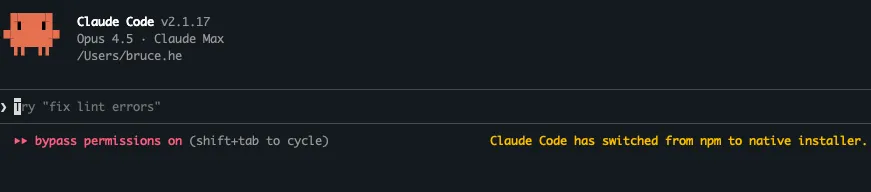
Once launched, you’ll see an interactive interface where you can type questions directly. Type /help for help or /exit to quit.
Part 2: Core Usage Tips
These are the most frequently used techniques. Master them first.
Tip 1: Be Specific in Your Requests
Vague prompts produce vague results. Give Claude the details it needs.
# ❌ Too vague
> Optimize this function

# ✅ Specific and actionable
> Optimize the parseJSON function in src/utils/parser.js.
> It currently takes 5 seconds to process a 10MB file.
> Target: under 1 second. Consider streaming or chunked parsing.
Key rule: Always specify the file, the problem, and the expected outcome.
Tip 2: Break Complex Tasks Into Steps
Asking Claude to build an entire system at once often leads to missed details or context overflow.
# ❌ All at once (error-prone)
> Build a complete blog system with users, posts, and comments

# ✅ Step by step (controllable and verifiable)
> Step 1: Design the database schema for users, posts, and comments
# Review the design...
> Step 2: Implement user registration and login APIs based on that schema
# Test it...
> Step 3: Implement CRUD endpoints for posts
Key rule: Verify each step before moving to the next.
Tip 3: Let Claude Understand Your Project First
Before asking Claude to write code, let it explore your codebase.
# Get an overview
> Analyze this project's directory structure and tech stack

# Understand a specific module
> Read through src/services/payment and explain the payment flow

# Learn the code style
> Look at the code in src/controllers and summarize the coding conventions
Once Claude understands your project, its output will better match your existing patterns.
Tip 4: Interrupt Immediately When Things Go Wrong
If Claude starts heading in the wrong direction, press Esc to interrupt immediately.
> Refactor the authentication module
# Claude starts executing but touches files it shouldn't...

# Press Esc to interrupt (NOT Ctrl+C — that exits the program)

> Stop. Only refactor files in src/auth. Don't touch src/user.
Key rule: Esc interrupts the task. Ctrl+C exits the program. Catch mistakes early.
Tip 5: Use Screenshots for UI Issues
Got a UI problem? A screenshot is worth a thousand words.
# Mac: Cmd + Ctrl + Shift + 4 to capture to clipboard
# Then press Ctrl+V in Claude Code (not Cmd+V)

> [paste screenshot]
> The login form styling is broken. Inputs should have rounded corners
> and the button color should be #1890ff.
You can also drag and drop image files directly into the terminal window.
Tip 6: Reference Files with @
Use @ to quickly reference files so Claude reads them directly:
# Reference a single file
> Optimize the performance of @src/utils/helper.ts

# Reference multiple files
> Compare @package.json and @package-lock.json for version mismatches

# Reference a directory
> Analyze the component structure in @src/components/
Direct @ references are faster and more precise than having Claude search for files.
Part 3: Productivity Boosters
Master these to dramatically speed up your workflow.
Tip 7: Learn the Essential Shortcuts
Memorize these core shortcuts to keep your hands on the keyboard:
| Action | Shortcut | Notes |
|---|---|---|
| Interrupt task | Esc | Stop current execution |
| Undo operation | Esc + Esc | Roll back code and conversation |
| Newline in input | Option+Enter (Mac) | Enter multi-line content |
| Switch model | Option+P (Mac) | Quick model toggle |
| Paste image | Ctrl+V (Mac) | Send screenshot |
| Background task | Ctrl+B | Send task to background |
See the full shortcut reference in the appendix.
Tip 8: Quick Bash Execution
Prefix commands with ! to execute them directly without Claude’s interpretation:
# Direct execution, bypassing Claude
> ! npm test
> ! git status
> ! docker ps

# Supports Tab auto-completion
> ! npm run b<Tab>  # Auto-completes to npm run build
Great for simple commands where you don’t need Claude’s analysis.
Tip 9: Skip Permission Prompts
Constant permission prompts break your flow. Pre-approve operations you trust:
Option 1: Skip all permissions at startup (use only in trusted environments)
claude --dangerously-skip-permissions
Option 2: Pre-configure allowed commands (recommended)
Edit ~/.claude/settings.json:
{
  "permissions": {
    "allow": [
      "Bash(npm:*)",
      "Bash(git:*)",
      "Bash(docker:*)",
      "Read",
      "Edit"
    ]
  }
}
This allows npm, git, docker commands plus file read/write without confirmation prompts.
Tip 10: Resume Previous Sessions
Pick up where you left off across sessions:
# Continue the most recent conversation
claude -c
# or
claude --continue

# Browse session history
claude -r
# or
claude --resume

# Resume a specific session (supports fuzzy matching)
claude -r "auth refactor"
Name your sessions for easy retrieval:
# Rename the current session
> /rename payment-module-refactor

# Resume it later
$ claude -r "payment"
Tip 11: Background Long-Running Tasks
Send time-consuming tasks to the background and keep working:
# Press Ctrl+B to background the current task
> Refactor the entire services directory
# While executing... press Ctrl+B

# The task continues in the background while you work on other things
> Different question: how do I fix this bug?

# Check background task status
> /tasks
Ideal for large refactors, batch file processing, or any task that takes a while.
Part 4: AI-Powered Terminal
Turn Claude into your intelligent command-line interface.
Tip 12: Natural Language Git Operations
Forget Git command syntax — just describe what you want:
# Check status
> What files did I change today?
> Show me the commits from the last week

# Commit changes
> Commit my changes with message "Fix avatar upload failure"

# Branch operations
> Create a new branch feature/payment from main
> Merge feature/payment into develop

# Rollback
> Undo the last commit but keep the code changes
> Revert config.js to the previous version
Tip 13: Natural Language System Commands
No need to memorize complex command flags:
# Find files
> Find all TypeScript files over 500 lines in src/
> List .vue files modified in the last 24 hours

# Process management
> What's using port 3000?
> Kill all node processes

# Log analysis
> Count HTTP 500 errors in nginx access.log
> Find the 10 most frequent errors in error.log

# Batch operations
> Rename all .jsx files to .tsx in the src directory
> Delete all .DS_Store files in the project
Tip 14: Pipe Data for Analysis
Feed command output directly to Claude for analysis:
# Analyze test results
$ npm test 2>&1 | claude -p "Analyze why these tests are failing"

# Analyze logs
$ tail -100 error.log | claude -p "What do these errors have in common?"

# Analyze Git history
$ git log --oneline -20 | claude -p "Summarize recent development work"

# Analyze dependencies
$ npm outdated | claude -p "Which dependencies should I upgrade first?"
Tip 15: Trigger Deep Thinking
For complex problems, use keywords to activate deeper reasoning:
| Keyword | Depth | Best For | Token Cost |
|---|---|---|---|
think | Basic | Simple questions | Low |
think hard | Medium | Trade-off decisions | Medium |
think harder | Deep | Architecture design | High |
ultrathink | Maximum | Complex system design | Very high |
# Simple problems
> think Why doesn't this regex match?

# Architecture decisions
> think harder Design a push notification system for 1M users,
> considering real-time delivery, reliability, and cost

# Most complex problems (use sparingly — expensive)
> ultrathink Redesign this monolith's microservice decomposition
Tip 16: Plan Mode — Think Before Acting
For complex tasks, have Claude create a plan before making changes:
# Enter plan mode
> /plan

# Or start with plan mode
$ claude --permission-mode plan
In plan mode, Claude will:
- Analyze the requirements
- List implementation steps
- Identify files to modify
- Wait for your approval before executing
# Example: refactoring a complex module
> /plan
> Refactor the order module into separate service, repository, and controller layers

# Claude outputs a detailed plan:
# 1. Create services/order.service.ts
# 2. Create repositories/order.repository.ts
# 3. Modify controllers/order.controller.ts
# 4. Update related test files
# ...

# Approve the plan to start execution
Best for: Refactoring, architecture changes, multi-file modifications.
Tip 17: Multi-Directory Workspaces
Working with a split frontend/backend or microservices? Use /add-dir to give Claude visibility across projects:
# Add related directories
> /add-dir ../backend-api
> /add-dir ../shared-types

# Now Claude can understand cross-project relationships
> The frontend calls /api/users — show me the backend implementation

> Is the UserDTO type in shared-types the same one used by both frontend and backend?
Common scenarios:
# Full-stack project
> /add-dir ../server    # Add backend
> /add-dir ../mobile    # Add mobile app

# Microservices
> /add-dir ../user-service
> /add-dir ../order-service
> /add-dir ../gateway

# Then ask cross-service questions
> How do the user service and order service communicate?
Part 5: Personalization
Customize Claude Code to fit your workflow.
Tip 18: Use the Memory System (CLAUDE.md)
CLAUDE.md is Claude’s memory file for storing project context and your preferences.
File priority (highest to lowest):
./CLAUDE.md              # Project-level, committed to repo, shared with team
./.claude/CLAUDE.md      # Project config
~/.claude/CLAUDE.md      # Global personal preferences
Quick memory entries:
# Use the # prefix to add memories on the fly
> # This project uses pnpm, not npm
> # Commit messages should be in English
> # API responses use { code, data, message } format
Edit the memory file:
> /memory
Example CLAUDE.md:
# Project Standards

## Tech Stack
- Frontend: Vue 3 + TypeScript + Vite
- Backend: Go + Gin + GORM
- Database: PostgreSQL + Redis

## Code Style
- Components use PascalCase, utility functions use camelCase
- Functions should not exceed 50 lines
- Unit tests are required

## Common Commands
- `make dev` — start dev environment
- `make test` — run tests
- `make lint` — lint code
Tip 19: Create Custom Slash Commands
Package common workflows into reusable commands.
Project-level commands (.claude/commands/ directory):
# Create file .claude/commands/review.md
Review the currently staged code:

1. Check for obvious bugs or logic errors
2. Verify compliance with project coding standards
3. Identify security concerns
4. Provide specific improvement suggestions
Usage:
> /project:review
Personal global commands (~/.claude/commands/ directory):
# Create file ~/.claude/commands/standup.md
Prepare my daily standup update:

1. Check git log for yesterday's commits and summarize completed work
2. Check the status of issues assigned to me
3. Identify potential blockers or coordination needs

Output format:
## Yesterday
## Today
## Blockers
Usage:
> /user:standup
Commands with arguments:
# .claude/commands/fix-issue.md
Fix GitHub Issue #$ARGUMENTS

Steps:
1. Run gh issue view $ARGUMENTS to get issue details
2. Analyze the root cause
3. Write the fix
4. Write test cases
5. Run tests to verify
Usage:
> /project:fix-issue 42
Tip 20: Switch Models Strategically
Use different models for different tasks:
| Model | Strengths | Best For |
|---|---|---|
| Opus | Strongest reasoning | Architecture design, complex bugs |
| Sonnet | Balanced (default) | Daily development |
| Haiku | Fastest response | Simple questions, code completion |
# Check current model
> /model

# Switch models
> /model opus     # For complex problems
> /model sonnet   # For everyday tasks
> /model haiku    # For quick tasks

# Keyboard shortcut
# Mac: Option+P
# Win/Linux: Alt+P
Tip 21: Extend Capabilities with MCP Servers
MCP (Model Context Protocol) lets Claude connect to external tools:
# Add GitHub MCP server
$ claude mcp add github -- npx -y @anthropic/github-mcp

# Add database MCP server
$ claude mcp add postgres -- npx -y @anthropic/postgres-mcp

# List installed MCP servers
$ claude mcp list

# Manage MCP in a session
> /mcp
With MCP servers installed, Claude can:
- Manage GitHub PRs and Issues
- Query databases
- Call external APIs
Part 6: Cost and Session Management
Tip 22: Monitor Usage and Compress Context
Check usage:
# Token usage for current session
> /cost

# Context window utilization (visual)
> /context
# Example output: [████████████░░░░░░░░] 58%

# Overall statistics
> /stats

# Subscription quota
> /usage
Compress context:
Long conversations degrade quality and increase costs. Compress regularly:
# Smart compression, preserving key topics
> /compact Keep the database design discussion

# Full reset (when starting a new topic)
> /clear
Guideline: When /context shows over 70%, consider compressing or starting a new session.
Tip 23: Set Budget and Turn Limits
Prevent runaway costs in automated tasks:
# Set maximum spend (USD)
$ claude -p --max-budget-usd 5.00 "Refactor all project tests"

# Limit conversation turns
$ claude -p --max-turns 10 "Fix this bug"

# Combine both
$ claude -p --max-budget-usd 2.00 --max-turns 5 "Optimize performance"
Essential for CI/CD pipelines and scripts to avoid unexpected charges.
Tip 24: Export Conversations
Save important conversations for future reference:
# Export to file
> /export session-2024-01-15.md

# Export to clipboard
> /export

# Exported conversations can be:
# - Saved as documentation
# - Shared with team members
# - Used as context for future sessions
Appendix: Quick Reference
Slash Commands
| Command | Description |
|---|---|
/help | Show help |
/exit | Exit program |
/clear | Clear conversation |
/compact [focus] | Compress conversation history |
/resume [name] | Resume a previous session |
/rename <name> | Rename current session |
/init | Initialize project config |
/memory | Edit memory file |
/model [name] | View/switch model |
/plan | Enter plan mode |
/add-dir <path> | Add working directory |
/cost | View token usage |
/context | View context utilization |
/tasks | View background tasks |
/export [filename] | Export conversation |
/doctor | Check installation status |
/mcp | Manage MCP servers |
CLI Arguments
| Argument | Description |
|---|---|
-c, --continue | Continue last conversation |
-r, --resume [name] | Resume a specific session |
-p, --print | Non-interactive mode |
--model <model> | Specify model |
--permission-mode plan | Start in plan mode |
--max-turns <count> | Limit conversation turns |
--max-budget-usd <amount> | Set maximum spend |
--dangerously-skip-permissions | Skip all permission prompts |
Keyboard Shortcuts
| Shortcut | Action |
|---|---|
Esc | Interrupt current task |
Esc + Esc | Undo operation |
Ctrl+C | Exit program |
Ctrl+L | Clear screen |
Ctrl+B | Background task |
Option+Enter | Newline in input |
Option+P | Switch model |
Ctrl+V | Paste image |
Up/Down | Command history |
Conclusion
This guide covered 24 practical tips for Claude Code:
- Core Usage (1-6): Be specific, break tasks down, explore projects first, interrupt early, use screenshots, reference files with @
- Productivity (7-11): Shortcuts, bash mode, skip permissions, resume sessions, background tasks
- AI Terminal (12-17): Natural language Git, system commands, pipe input, deep thinking, plan mode, multi-directory workspaces
- Personalization (18-21): Memory system, custom commands, model switching, MCP extensions
- Cost Management (22-24): Monitor usage, set budgets, export conversations
Start with the 6 core usage tips and gradually work your way through the rest as you get comfortable.
References
- Claude Code Official Documentation
- Claude Code CLI Reference
- Anthropic Engineering Team Best Practices
Comments
Join the discussion — requires a GitHub account